Home
Home
How Artificial Intelligence Is Changing Everything About Photo Editing
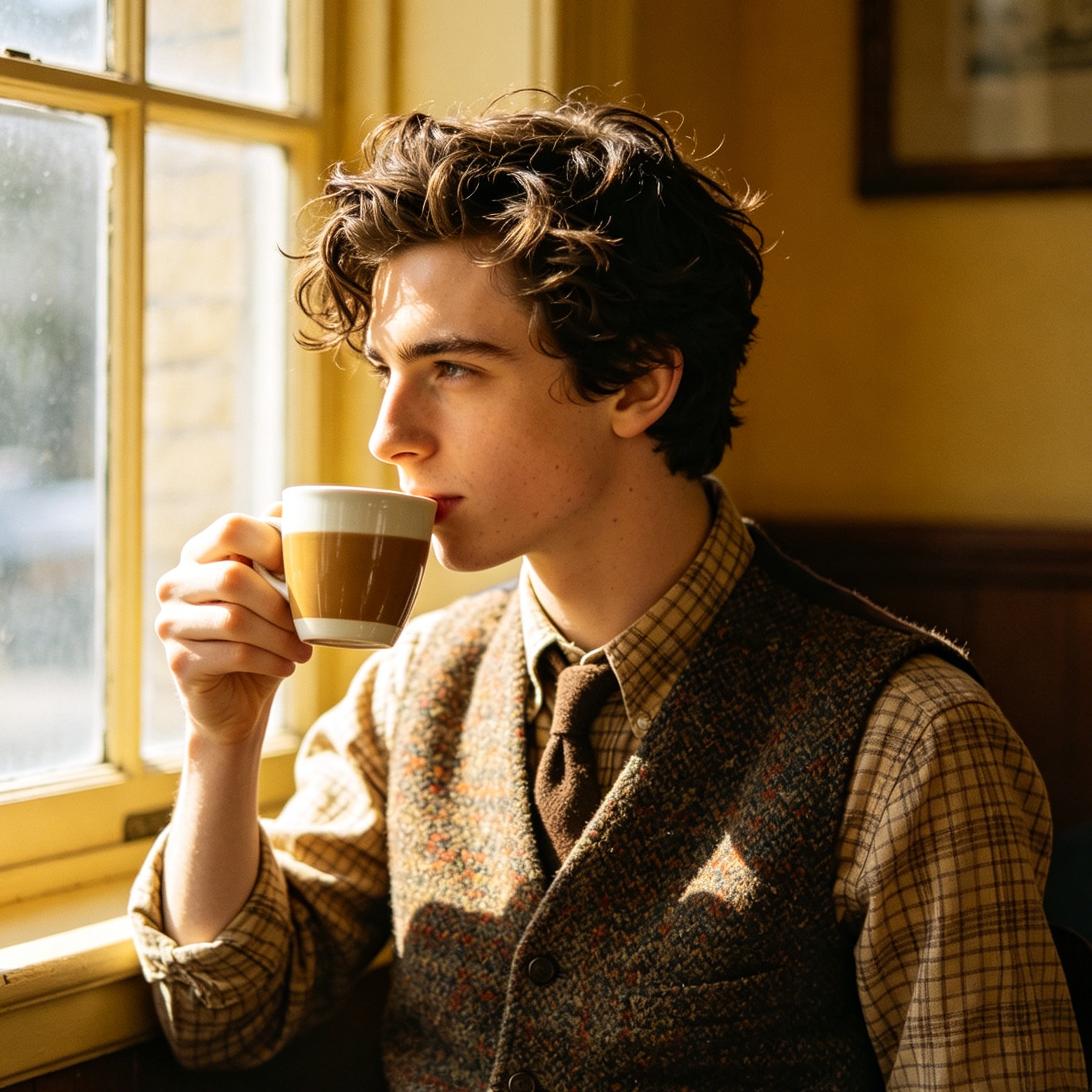
The era of meticulously clicking individual pixels or spending hours mastering complex bezier curves is rapidly fading. Artificial intelligence has fundamentally altered the landscape of digital imagery, shifting the focus from manual labor to creative intent. What once required a decade of professional experience in darkrooms or early versions of Photoshop can now be accomplished through natural language prompts or a single click. This evolution represents more than just a speed boost; it is a complete reimagining of how visual stories are told.
Understanding the Shift from Pixels to Semantics
Traditional photo editing relied heavily on mathematical adjustments to pixel values—brightness, contrast, and color balance. AI photo editing, however, operates on a semantic level. The software no longer sees a grid of colored squares; it understands that it is looking at a "woman standing in front of a sunset," a "cloudy sky over a mountain range," or "unwanted power lines across an architectural marvel."
This understanding is powered by machine learning and neural networks, specifically Generative Adversarial Networks (GANs) and Diffusion Models. These systems have been trained on millions of images, learning the relationships between objects, light, and texture. When a user asks an AI to "remove the crowd in the background," the system doesn't just smudge the area; it identifies the background elements (like a brick wall or a park bench) and recreates them realistically to fill the gap.
Core Capabilities of AI in Modern Photography
The practical applications of AI in photo editing are vast, ranging from invisible technical fixes to dramatic creative transformations. Understanding these core capabilities is essential for anyone looking to leverage this technology effectively.
Generative Fill and Scene Expansion
Generative fill is arguably the most transformative feature in contemporary editing suites like Adobe Photoshop. By utilizing text prompts, editors can add elements that were never there or change existing ones. For instance, selecting a person's jacket and typing "red leather biker jacket" allows the AI to replace the garment while maintaining the correct lighting, shadows, and perspective of the original scene.
Generative expansion (also known as "outpainting") solves the problem of cramped compositions. If a portrait is cropped too tightly at the top, AI can analyze the existing hair and background textures to "invent" the rest of the head and the environment beyond the original frame. This is a game-changer for social media formatting, where a landscape-oriented photo can be expanded vertically for a mobile-first story without losing quality.
Object Removal and Intelligent Inpainting
Removing distractions has always been a core part of the editing workflow. Traditional tools like the Clone Stamp or Patch Tool required manual sampling and careful blending. AI-powered object removal, such as the "Magic Eraser" found in Google Photos or "Generative Remove" in Lightroom, automates this with stunning accuracy.
The AI identifies the edges of the unwanted object and analyzes the surrounding pixels to predict what should be behind it. In our testing, removing complex objects—like a person walking in front of a textured stone fountain—now takes seconds and leaves fewer "ghosting" artifacts than manual methods.
Neural Enhancement and Upscaling
Low-resolution images or shots ruined by "noise" (digital grain) were previously considered unsalvageable beyond a certain point. AI upscaling, or super-resolution, changes this. Tools like Topaz Photo AI use deep learning to reconstruct missing details rather than simply duplicating pixels.
When upscaling a 1080p image to 4K, the AI recognizes textures—such as the fine lines of a bird's feathers or the pores on human skin—and synthesizes those details. Similarly, AI denoisers can distinguish between actual image detail and sensor noise, allowing photographers to shoot at higher ISO settings in low light with the confidence that the final image will be clean.
Portrait Retouching and Relighting
AI has brought professional-level portrait retouching to the masses. "Neural Filters" can now adjust facial expressions, change the direction of a person's gaze, or even "age" a subject. More practically, AI can perform non-destructive skin smoothing that preserves texture, whitens teeth, and removes blemishes automatically.
Relighting is another sophisticated application. By creating a 3D depth map of a 2D image, AI tools can simulate a new light source. If a portrait was shot with flat, overhead lighting, the AI can apply a "virtual softbox" to one side, adding shadows and highlights that mimic a professional studio setup.
Popular AI Photo Editing Tools for Different Needs
The market for AI editing tools is diverse, catering to everyone from casual smartphone users to high-end commercial retouchers. Choosing the right tool depends on the desired balance between control and automation.
Professional Standards: Adobe Photoshop and Lightroom
Adobe has integrated its "Firefly" AI model directly into its Creative Cloud ecosystem. For professionals, this is the most robust option because it combines AI's generative power with traditional, high-precision tools. The AI-generated layers are often produced as separate entities, allowing for manual masking and fine-tuning.
For high-volume photographers, Lightroom’s AI-powered masking is a massive time-saver. It can automatically detect "Subject," "Sky," or "Background," allowing for localized adjustments across hundreds of photos simultaneously.
Specialized Enhancement: Topaz Photo AI
Topaz Labs has carved out a niche as the "gold standard" for image quality repair. Their software focuses specifically on sharpening, denoising, and upscaling. Unlike general editors, Topaz is often used as a plugin or a first-step processor. In professional workflows, running a noisy RAW file through Topaz before bringing it into a creative editor often yields superior results.
Creative and Social: Canva and Fotor
For small business owners and social media managers, Canva’s "Magic Studio" offers a highly accessible entry point. It simplifies complex tasks like background removal and object replacement into a web-based interface. While it lacks the granular control of Photoshop, its speed and ease of use for creating marketing assets are unmatched.
Batch Automation: Imagen AI
Imagen AI represents a different side of the technology—workflow automation. It is designed for wedding and event photographers who have thousands of images to process. The AI "learns" an editor’s personal style by analyzing previously edited catalogs and then applies those specific color, exposure, and cropping preferences to new sets of photos. This can reduce post-production time by over 80%.
Practical Guide: How to Edit Photos with AI
Successfully using AI in your workflow requires a shift in mindset. It is no longer just about moving sliders; it is about communicating with an intelligent system.
Step 1: Selecting the Right Tool for the Task
Before starting, identify the primary goal:
- For quality issues (blur, noise): Use Topaz Photo AI.
- For creative changes (adding/removing objects): Use Adobe Photoshop or Firefly.
- For quick social media edits: Use Canva or Google Photos.
- For portrait retouching: Use Lensa or PortraitPro.
Step 2: Mastering the Prompt
In generative tools, the "prompt" is your primary instrument. To get the best results:
- Be specific but concise: Instead of "add a dog," try "a golden retriever sitting on the grass."
- Specify the style: Use terms like "photorealistic," "cinematic lighting," or "bokeh background" to guide the AI’s aesthetic choices.
- Avoid negative prompts if possible: Focus on what you want rather than what you don't want, as many current models still struggle with negation.
Step 3: Iteration and Refinement
AI rarely gets it perfect on the first try. Most generative tools provide multiple variations (usually three or four). If none are perfect, you can refine your prompt or adjust the selection area. A common professional technique is to use AI to generate the base of an element and then use traditional tools like the "Healing Brush" to fix small AI-generated artifacts or "hallucinations."
Step 4: Maintaining Image Fidelity
A common mistake is over-reliance on AI, which can lead to a "plastic" or "uncanny valley" look. To maintain a natural appearance:
- Fade the AI effect: Many tools allow you to adjust the opacity of the AI-generated layer.
- Keep the grain: When using AI to smooth skin or remove noise, re-introducing a small amount of digital grain can help the AI-edited areas blend seamlessly with the original photograph.
Hardware Requirements for AI Photo Editing
While many AI tools are cloud-based (processing takes place on the company's servers), others run locally on your machine. Local AI processing is significantly faster and more private but requires specific hardware.
- GPU (Graphics Processing Unit): This is the most critical component. AI models rely on tensor cores for calculations. An NVIDIA RTX card with at least 8GB of VRAM is recommended for smooth performance in tools like Topaz or local Photoshop filters.
- RAM: 16GB is the minimum for modern editing, but 32GB or 64GB is preferable when working with high-resolution generative layers.
- Neural Engines: Apple’s M-series chips (M1, M2, M3) include a "Neural Engine" specifically designed for these tasks, making them excellent choices for AI-driven mobile workflows.
The Impact on the Photography Profession
The rise of AI has sparked intense debate within the creative community. Is a photo still a "photograph" if half of its pixels were generated by a machine?
The Death of the "Mundane" Task
For the professional photographer, AI is primarily a tool for liberation. By automating the "janitorial" work of editing—cloning out dust spots, selecting hair strands, or correcting exposure—AI allows artists to focus on the higher-level decisions of composition, storytelling, and emotional resonance. It lowers the barrier to entry for technical mastery while raising the ceiling for creative expression.
Ethical Considerations and Authenticity
The ease of manipulation brings ethical challenges. In journalism and documentary photography, the use of generative AI is strictly scrutinized to maintain the "truth" of the image. Content credentials, such as those championed by the Content Authenticity Initiative (CAI), are becoming vital. These act as a "digital nutrition label," revealing which parts of an image were captured by a camera and which were altered by AI.
Common Challenges and Limitations of AI Editing
Despite the hype, AI photo editing is not a magic wand. It has specific weaknesses that users must navigate.
Artifacts and Hallucinations
AI does not "understand" physics. It might generate a third leg for a person, or a shadow that goes in the wrong direction. These are known as artifacts or hallucinations. High-resolution work often requires a human editor to go in and fix these logical errors manually.
Loss of Original Detail
Aggressive AI denoising or sharpening can sometimes "smudge" fine, authentic details in favor of a clean, AI-predicted texture. This is particularly problematic in wildlife and macro photography, where the minute details of an insect's eye or a flower's stamen are the primary focus.
Copyright and Commercial Use
The legal landscape regarding AI-generated content is still evolving. While Adobe Firefly is trained on licensed Adobe Stock images to be "commercially safe," other models trained on the open internet may pose copyright risks for commercial projects. It is essential to check the Terms of Service for any AI tool used for professional work.
Frequently Asked Questions (FAQ)
What is the best AI photo editor for beginners?
Adobe Firefly and Canva are generally considered the best for beginners. They provide intuitive, text-based interfaces that don't require knowledge of layers, masks, or complex color theory.
Can AI fix a blurry photo?
Yes, to an extent. AI sharpening tools like Topaz Photo AI can correct "motion blur" (caused by a shaky camera) or "lens softness." However, if a photo is severely out of focus, the AI will have to "invent" so much detail that the resulting image may no longer look like the original subject.
Is AI photo editing free?
Many mobile apps like Google Photos offer free basic AI features. Professional tools like Adobe Photoshop require a subscription. Some web-based generators offer a "freemium" model with a limited number of "generative credits" per month.
Does AI editing ruin the quality of my photos?
If used incorrectly, yes. Over-processing can lead to a loss of natural texture. However, when used as part of a professional workflow, AI often improves the technical quality by removing noise and increasing resolution.
Will AI replace professional photo editors?
AI is more likely to replace "retouchers" who focus solely on technical cleanup. Creative editors who make stylistic and narrative choices will use AI as a powerful assistant to work faster and push creative boundaries.
Summary
Editing photos with artificial intelligence has transitioned from a futuristic novelty to an essential skill set for modern creators. By mastering tools like generative fill, AI upscaling, and intelligent object removal, photographers can overcome technical limitations that previously hampered their vision.
The key to success lies in viewing AI not as a replacement for human creativity, but as a sophisticated co-pilot. Whether you are a casual user looking to remove a tourist from your vacation photo or a professional managing a high-volume wedding shoot, the integration of AI allows for a more efficient, creative, and limitless approach to digital imagery. As the technology continues to mature, the boundary between what we can imagine and what we can produce will continue to disappear.
-
Topic: JarvisArt: Liberating Human Artistic Creativity via an Intelligent Photo Retouching Agenthttps://proceedings.neurips.cc/paper_files/paper/2025/file/4ac4365b98bc242acd5ab974a05c68a8-Paper-Conference.pdf
-
Topic: AI Photo Editor | Edit photos online | Adobe Fireflyhttps://www.adobe.com/uk/products/firefly/features/ai-photo-editor.html
-
Topic: GitHub - imagenai/imagen-ai-sdk · GitHubhttps://github.com/imagenai/imagen-ai-sdk/